Iron Messenger

A channel in Iron Messenger is a group where only you, and the people you hand the microphone to, can post, while everyone else reads. You start one in under two minutes, write anything from a one-liner to a full article with photos, and decide whether readers can comment. It is free, and this guide walks through every step.
What is a channel in Iron Messenger?
A channel is a broadcast: one microphone, many readers. In Iron Messenger it is not a separate kind of object with its own rules. It is a group where "Send messages" is off for everyone by default. The owner, the admins and anyone you personally give the right to post are the hosts. Everyone else is the audience.
That simple design has nice side effects. Readers can still react, vote in polls and open articles. Nobody is told when someone joins, so the feed stays about your posts. And as the owner you can hide the member list, so readers see only the hosts, while the member count stays visible.
Use a channel for announcements from a sports club, homework updates for a class, a fan page, news from a small business, or a daily meme drop like our own War Thunder meme channels.
How to create a channel, step by step
- Create a group. Start a new chat, choose a group, give it a name and a photo. You can add people now or later.
- Turn it into a channel. Open the group settings, find "Everyone can…" and switch off Send messages. The group is now a channel: nobody posts but you and whoever you hand the mic to.
- Hand the mic. Give posting rights to a co-author, or make someone an admin. You choose rights person by person.
- Make it public (optional). Switch on Public group and claim a handle. Handles use only a to z and 0 to 9, so the link is easy to type and read out loud.
- Decide on comments. Turn on comments under posts, and link a discussion group if you want one. More on that below.
Changed your mind? Switch "Send messages" back on and the channel becomes a normal group, with all its posts in place.
Got something to say? Get a microphone. Channels are free, with no ads and no algorithm between you and your readers.
What can you post? Articles, polls, photos and more
Everything a message can be, a channel post can be: text, photos, video, GIFs, stickers and polls. Two things make channels special.
Articles
An article is the long post a channel is for. It has a title and a stack of blocks: text, heading, quote, a collapsible section, a photo, a sticker. There are two formatting buttons, B and I, and that is on purpose: structure comes from the blocks, not from twelve fonts. In the thread the article shows in full with sections folded, and one tap opens a full-screen reader. You can edit it for 10 days after posting.
Send later
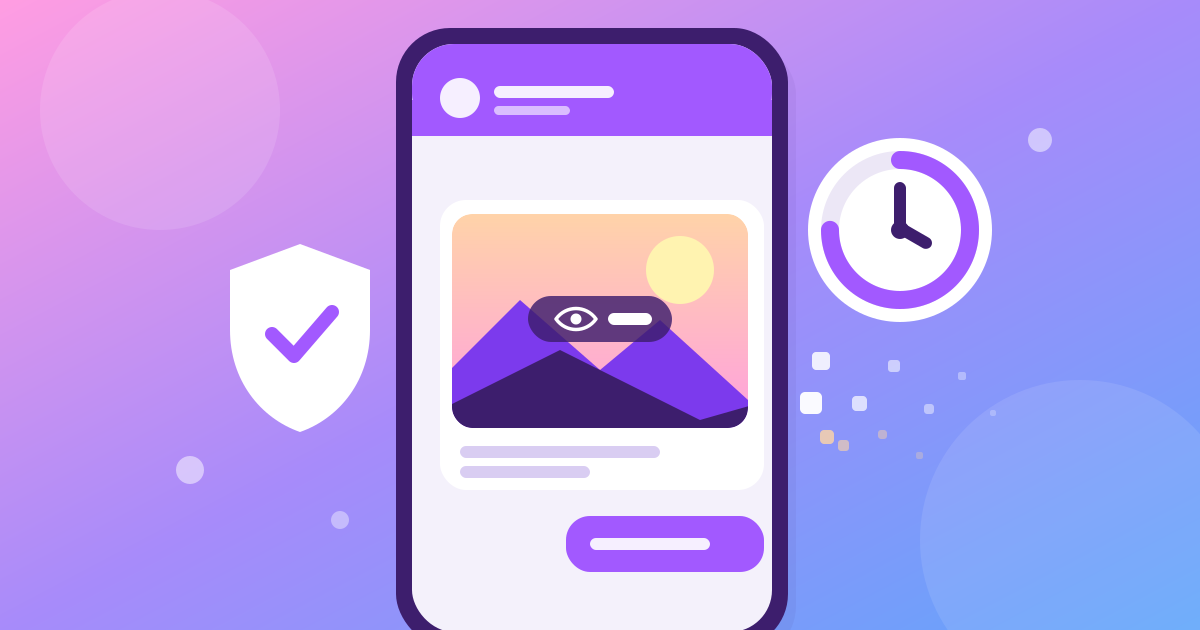
Write the post tonight and choose when it goes out, up to 30 days ahead. The pending post waits on our server, not on your phone, so it is delivered on time even if your battery is dead. This is how our meme channels post four times a day without anyone sitting at a keyboard.
Polls
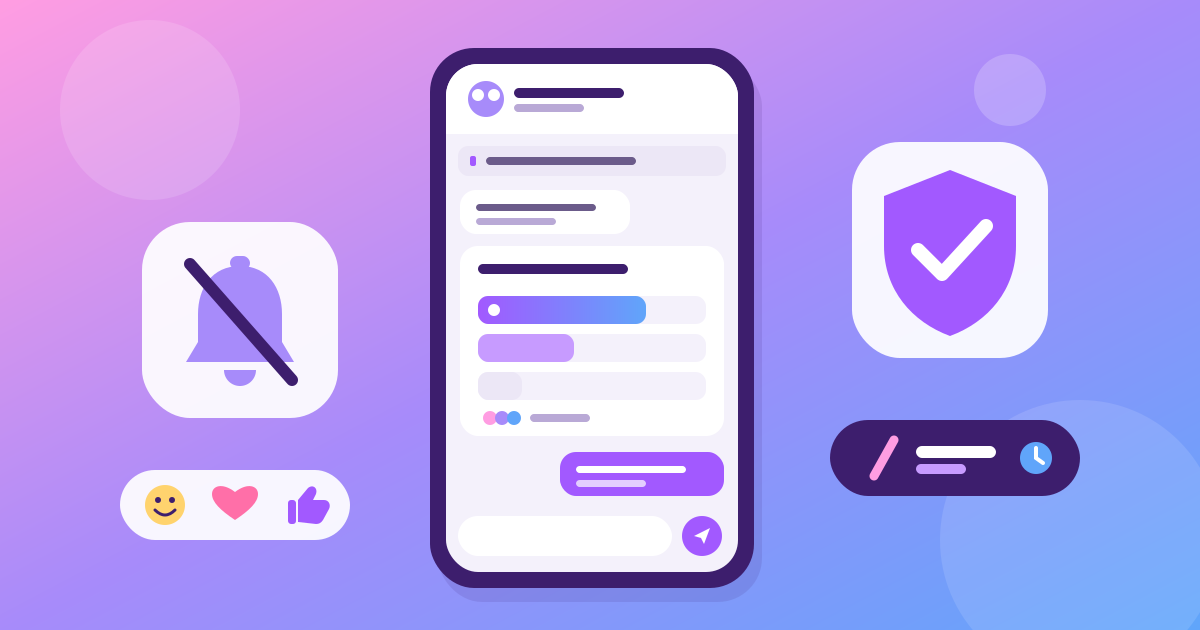
Ask your readers. Channel polls have the same six switches as group polls, including "no peeking", which hides the tally until the poll closes. The full list is in our guide to group chats without the chaos.
Comments under posts, and a discussion group
With comments on, every post grows a bar at the bottom: "Comment" on a fresh post, "Comments: 12" once people talk. A tap opens the comments, and they are a full chat: photos, stickers, replies, reactions, all of it.
Comments are quiet by design. A comment never pushes your channel up anybody's chat list and never adds to unread. Only the author of the post and the person someone replied to are notified. A lively comment section does not turn your channel into the noisiest chat on the phone.
For more, link a group. Pick one of your groups, or create one on the spot, and every new post lands in it as a card, with the comments as replies to that card. Readers who are not in the group still read every comment and see a Join button: one tap, even into a private group, because you opened that door on purpose.
Your moderation tools cover comments too: stop words, slow mode, the newcomer allowance and Iron Help commands like /mute 10m.
Start your channel tonight, post the first article tomorrow at 9. Send later does the waking up for you.
How do people find your channel?
- The link. A public channel with a handle has a web address,
ironmess.app/g/yourchannel. Share it anywhere. It opens the channel in the app, and anyone without the app gets a page with download buttons. The link carries your handle, never an internal ID number, so nobody can count or crawl channels by guessing. - Link previews. Paste the link in another app and it unfurls with a picture card, not a bare URL.
- Popular chats. Public channels with at least one post can appear in the list new users see when their chat list is still empty.
What a channel is not
Honesty saves you time: an Iron Messenger channel holds up to 500 members, the same limit as a group. That makes it great for a school, a club, a community or a circle of fans, and the wrong tool for an audience of tens of thousands. There are no paid ads and no growth hacks. It is a calm room where your posts are the only thing on the wall. If you are choosing between apps, our comparison with Telegram and WhatsApp spells out the trade-offs, and what is Iron Messenger covers the rest of the app.
Questions people ask
How do I create a channel in Iron Messenger?
Create a group in Iron Messenger, open its settings and switch off "Send messages" under "Everyone can…". The group becomes a channel where only you and the people you give posting rights to can post.
Can readers comment on channel posts?
Yes, if you turn comments on in the Iron Messenger channel settings. You can also link a discussion group, so every post appears there as a card and the comments become replies to it.
How many members can an Iron Messenger channel have?
Up to 500, the same limit as an Iron Messenger group. Channels are built for an audience you know, such as a school, a club, a team or a circle of fans.
Can I schedule channel posts?
Yes. In an Iron Messenger channel, choose send later and set a delay of up to 30 days. The post waits on the server and goes out on time even if your phone is off.
How do people find my channel?
Make your Iron Messenger channel public and claim a handle: it gets a link like ironmess.app/g/yourchannel that you can share anywhere. Public channels with at least one post can also appear in Popular chats.