Iron Messenger
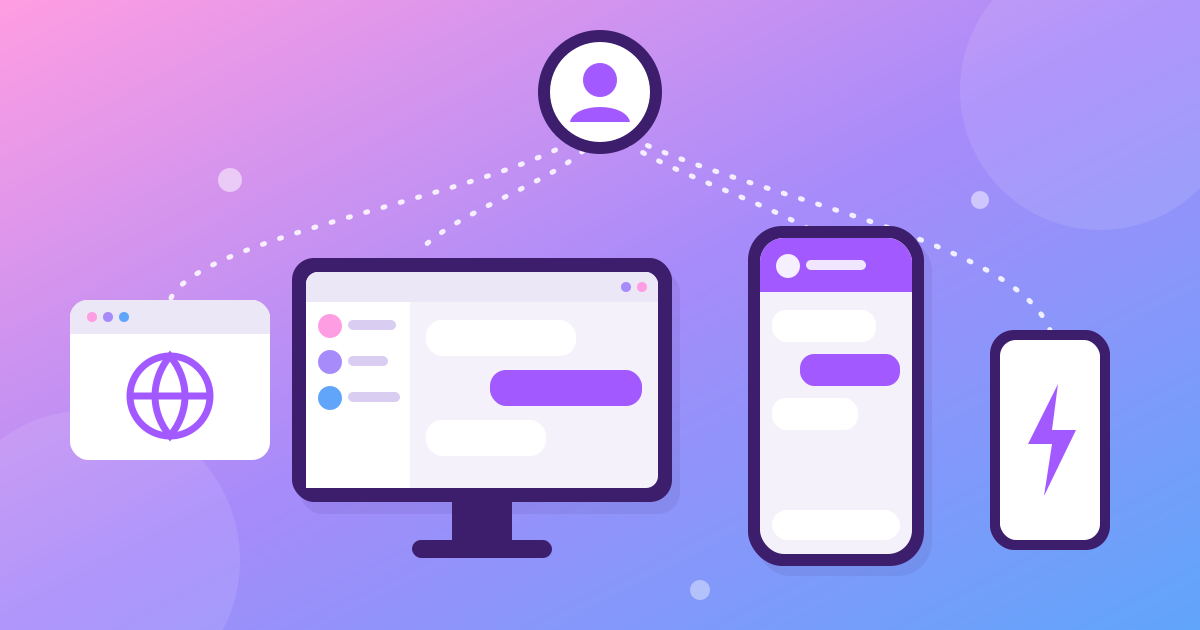
Iron Messenger runs on Android, Windows and in any web browser, with one account and the same chats on every screen. On Android you can install it from Google Play, from Huawei AppGallery or as an APK from our website, and there is a separate Lite app for old phones. On a computer you get it from the Microsoft Store or just open the web version.
Where can you install Iron Messenger?
Pick the door that fits the device in your hand. They all lead to the same account.
| Device | Where to get it | Best for |
|---|---|---|
| Android with Google services | Google Play | Most phones. Updates come through Play. |
| Android without Play, or you prefer files | APK from ironmess.app | Side-loading. The app updates itself. |
| Huawei without Google services | Huawei AppGallery | Huawei phones. Notifications via Huawei Push Kit. |
| Windows PC | Microsoft Store | Chatting from the keyboard at work or at home. |
| Any browser | m.ironmess.app | Trying it in ten seconds, or a laptop that is not on Windows. |
| Old or budget Android | Iron Messenger Lite (APK) | Phones with little memory, 32-bit phones, slow data. |
All the download buttons sit on the Iron Messenger home page, and each one goes straight to the right store or file.
Google Play or the APK from our site?
If your phone has Google Play, use it. Iron Messenger has been live there in production since 3 October 2026. Play handles updates for you, there is no "install from unknown sources" prompt, and Premium is paid through Play Billing like any other app.
The APK from our website is the same app, for people who cannot or do not want to use Play. It checks for new versions itself and offers the update inside the app. Premium works there too, through Google Play Billing. Use one or the other on a phone, not both: they are the same app, and your account follows you either way.
The Android app is built for modern phones. If yours is older, slower or short on storage, keep reading: there is a lighter option below.
One account, every screen. Start on your phone, carry on at your desk.
Huawei phones without Google services
Newer Huawei phones ship without Google services, which means no Play Store and no Google push notifications. Iron Messenger has a separate build in Huawei AppGallery made for exactly that: messages arrive through Huawei Push Kit, and Premium is sold through Huawei's own in-app payments, with the same tiers as everywhere else.
Two differences, both because AppGallery requires them: the app updates through AppGallery rather than by itself, and it never sends you to another store.
Iron Messenger on Windows
On a PC, install Iron Messenger from the Microsoft Store. It is a proper Windows app with its own window and taskbar icon, so your chats are not buried among forty browser tabs. You can sign in with your username and password, or with Google. Premium on Windows is bought through the Microsoft Store with whatever your Microsoft account already uses to pay.
Typing a long message on a real keyboard is a quality-of-life upgrade nobody regrets, especially in a busy group chat.
No install at all: the web version
Open m.ironmess.app in any modern browser, on a Mac, Linux, a Chromebook, a work laptop or a friend's phone. It is the same app with the same chats, nothing to install and nothing to uninstall later.
It is also the quickest way to see whether Iron Messenger is for you before you install anything. One honest limit: you cannot buy Premium in the browser. If you want it, the apps above can sell it to you.
Old phone? Try Iron Messenger Lite
Iron Messenger Lite is a separate Android app written natively for weak phones. The download is about 3 MB, it runs on 32-bit phones the main app cannot even install on, and it uses the same account and the same chats. It covers the everyday loop: chats, groups, photos, stickers, polls, notifications. It does not sell anything, so Premium is managed from the main app.
The full story, with tips for slow connections, is in Iron Messenger on old phones and slow internet.
Not sure which one to pick? The home page shows every button. Tap the one for your device.
One account on every screen
Your account is the thing that matters, not the device. Sign in anywhere and you get:
- Your chats and groups, the same on phone, PC and browser.
- Your theme. Pick one of the 18 themes on your phone and the PC picks it up too. Ten of them are free.
- Your Premium, whichever store sold it. Buy on Play, use it on Windows.
- Your privacy settings, which are free on every platform. More on them in how Iron Messenger handles privacy.
Signing up takes a username, an email and a password, or a Google account. No phone number needed, so a PC or a browser is a full first-class way in, not an add-on to a phone.
Questions people ask
Where can I download Iron Messenger?
On Android, get Iron Messenger from Google Play, Huawei AppGallery or as an APK from ironmess.app; on Windows, from the Microsoft Store. You can also use it without installing anything at m.ironmess.app.
Does Iron Messenger work on Huawei phones without Google services?
Yes. The Iron Messenger AppGallery build uses Huawei Push Kit for notifications and Huawei in-app payments for Premium, so it does not need Google services.
Can I use Iron Messenger on a computer?
Yes. Install the Iron Messenger Windows app from the Microsoft Store, or open the web version at m.ironmess.app in any modern browser on Mac, Linux or Windows.
Do my chats sync between phone and PC?
Yes. Chats, groups, your theme, your Premium and your privacy settings belong to your Iron Messenger account, so they are the same on every device you sign in on.
Do I need a phone number to use Iron Messenger on a PC?
No. You sign up for Iron Messenger with a username, an email and a password, or with Google, so a PC or a browser works as a full first device.